
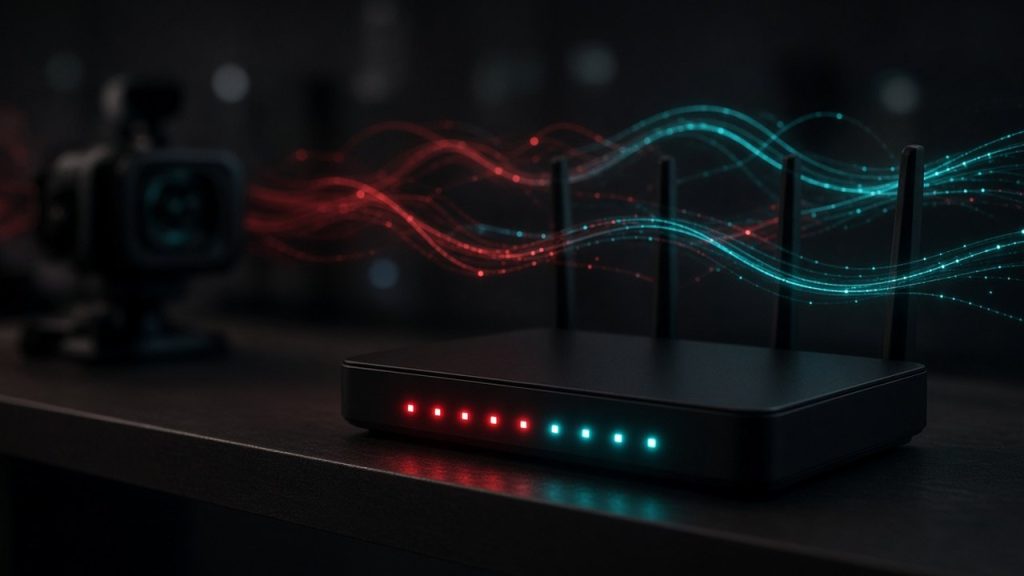
Professional live webcam streaming relies heavily on a stable, robust internet connection. While many performers focus entirely on lighting, cameras, and wardrobe, poor network infrastructure remains the leading cause of lost revenue and frustrated viewers. Whether you stream on high-volume platforms like Chaturbate, specialized spaces like Bongacams, or premium token sites like LiveJasmin, your upload speed directly determines your video quality and stream stability.
Understanding Upload Speed vs Download Speed
Most consumer internet plans are heavily asymmetric, meaning they provide massive download speeds while offering much lower upload speeds. When you browse the web, watch movies, or download files, you are using your download bandwidth. However, when you broadcast a live video stream from your webcam to your audience, your computer is sending data out to the platform’s servers, which strictly depends on your upload speed.
Why Upload Bandwidth Matters More Than You Think
If your upload speed is too low, the video stream will stutter, drop frames, or suffer from severe pixelation. Platforms use adaptive bitrate streaming to adjust to network fluctuations, but if your baseline capacity cannot support a clean high-definition signal, your feed will look amateurish. Viewers watching high-production shows on sites like Camsoda or Stripchat expect crisp visuals and fluid motion. If your broadcast constantly freezes, paying customers will quickly close your tab and move on to another performer.
Testing and Benchmarking Your Connection
Before going live, run regular speed tests using reliable online diagnostic tools. Do not rely on the numbers advertised by your internet service provider, as those typically reflect best-case scenarios under ideal conditions. Look specifically at your sustained upload megabits per second (Mbps). As a general rule of thumb for HD broadcasting, you want a minimum of 10 Mbps of stable upload bandwidth, though 20 Mbps or higher provides a much safer cushion if other devices in your home share the network.
Wired Connections Versus Wi-Fi
One of the most common mistakes new performers make is broadcasting over a wireless network connection. Wi-Fi is inherently susceptible to interference from household appliances, thick walls, Bluetooth signals, and competing networks from nearby apartments. Even if your signal indicator shows full bars, wireless packets can drop momentarily, causing micro-stutters or complete disconnects during private shows.
The Superiority of Ethernet Cables
Connecting your streaming computer directly to your router using a physical Ethernet cable eliminates wireless interference entirely. Cat6 or Cat7 Ethernet cables provide lightning-fast, uninterrupted data transmission with minimal latency. If your router is located in a different room from your studio space, consider running a discreet cable along the baseboards or investing in flat Ethernet cables that can easily slide beneath doors or carpets without creating hazards.
Minimizing Local Network Traffic
When you are live, your computer should have exclusive priority over your local network. Avoid running large file downloads, streaming 4K movies on other devices, or conducting heavy online gaming while your broadcast is active. If you share your living space with others, politely ask them to refrain from heavy bandwidth usage during your scheduled shift hours, or set up Quality of Service (QoS) rules in your router settings to prioritize your streaming PC above all other connected hardware.
Choosing and Configuring the Right Router
The standard modem-router combo unit provided by your internet service provider is rarely optimized for heavy live-streaming workloads. These stock devices often feature weak processors that can overheat or stutter when handling multiple concurrent data streams, smart home devices, and background security updates. Upgrading to a dedicated standalone router can dramatically improve your network reliability.
Key Features to Look For
When shopping for a new router, look for dual-band or tri-band capabilities, Gigabit ports, and a robust internal processor. Features like MU-MIMO (Multi-User, Multiple Input, Multiple Output) technology allow the router to communicate with multiple devices simultaneously without slowing down your primary connection. Additionally, advanced routers provide detailed traffic analysis tools, helping you identify if a background application is silently stealing your upload bandwidth.
Firmware Updates and Device Maintenance
Routers are essentially small computers that require regular maintenance to operate at peak efficiency. Set a monthly reminder to check for firmware updates, which often patch security vulnerabilities and fix stability bugs. Furthermore, giving your router a simple power cycle—unplugging it for thirty seconds and plugging it back in—once a month clears out cached data and keeps the hardware running cool and responsive.
Setting Up a Reliable Backup Internet Connection
Internet outages happen to everyone, usually at the worst possible moment. Losing your connection in the middle of a high-value private session or ticket show is stressful and damages your professional reputation. Having a secondary backup connection ensures you can get back online within seconds if your primary provider fails.
Mobile Hotspots and Cellular Tethering
Modern 4G LTE and 5G smartphones offer remarkably fast upload speeds that can easily sustain a webcam broadcast in an emergency. You can connect your phone to your streaming computer via a USB cable and enable USB tethering, which often provides a more stable connection than sharing Wi-Fi from the phone. Ensure your mobile data plan has sufficient high-speed data allotments so you are not caught off guard by overage fees or throttled speeds.
Dedicated Failover Routers
For high-volume professionals who treat streaming as a full-time business, dual-WAN routers offer an automated solution. These advanced routers allow you to plug both your primary broadband internet and a secondary cellular modem into the same hardware. If the primary internet drops out, the router automatically switches over to the cellular backup seamlessly without dropping your active stream or disconnecting your viewers.
Network Optimization and VPN Usage
Many creators wonder whether using a Virtual Private Network (VPN) is necessary or beneficial for camming. While VPNs are fantastic for general online privacy and hiding your true physical location from malicious actors, they can introduce complications for live streaming.
The Pros and Cons of Streaming Through a VPN
Routing your live video feed through a VPN encrypts your traffic and masks your IP address, but it also adds an extra layer of data processing. This overhead frequently increases your ping, decreases your upload speed, and can introduce jitter that causes your video stream to lag. If you choose to use a VPN for security, select a premium provider with high-speed dedicated servers and test your upload speeds thoroughly before launching your room on platforms like Jerkmate or Flirt4free.
Optimizing Firewall and Security Settings
Overzealous antivirus software and aggressive firewall settings can sometimes mistake high-bandwidth video streaming data for suspicious activity, throttling your connection or blocking packets altogether. Ensure your streaming software and browser permissions are fully whitelisted in your security suite. Keeping your operating system and network drivers fully updated prevents unexpected compatibility glitches that might otherwise disrupt your broadcast schedule.
Hardware and Software Synergy
Your internet connection is only one link in a long chain of technical requirements. Even with gigabit upload speeds, an outdated computer with an overburdened processor will struggle to encode video smoothly. Ensuring your hardware matches your network capabilities is essential for professional-grade broadcasts.
Encoding and Hardware Acceleration
When you broadcast, your computer must compress your camera’s raw video feed into a streamable format in real-time. Modern graphics cards feature dedicated hardware encoders that take this heavy burden off your main processor. Configuring your broadcasting software to utilize hardware encoding prevents your system from freezing up, keeping your network connection stable and responsive throughout your shift.
Browser Versus Dedicated Streaming Software
Different platforms have different technical requirements. Some sites operate entirely within your web browser, while others support advanced broadcasting software via RTMP streams. Browsers are notoriously resource-hungry and prone to memory leaks during long streaming sessions. If you notice your browser lagging after a few hours online, clearing your cache or restarting the application between shows can restore optimal performance.
Network Troubleshooting Quick Reference
When technical issues strike during your shift, having a systematic troubleshooting checklist helps you resolve the problem quickly without panicking in front of your room. The table below outlines common connection symptoms, their likely causes, and immediate corrective actions.
| Symptom | Likely Cause | Immediate Action |
|---|---|---|
| Constant pixelation and blurry video | Insufficient upload speed or network congestion | Close background applications and test upload bandwidth |
| Sudden complete stream disconnect | Router crash or temporary ISP outage | Reboot router or switch to mobile hotspot backup |
| High latency and audio-video desync | Wi-Fi packet loss or overloaded CPU | Switch from Wi-Fi to a direct Ethernet cable connection |
| Viewers reporting freezing feed | Platform server routing issue or unstable bitrate | Lower your broadcast resolution setting temporarily |
Frequently Asked Questions
What is the minimum upload speed required for camming?
You generally need a minimum of 10 Mbps of stable upload speed to broadcast in clear high definition, though 20 Mbps or higher is strongly recommended to prevent stuttering.
Should I use Wi-Fi or an Ethernet cable for streaming?
Always use a physical Ethernet cable whenever possible. Wi-Fi is vulnerable to interference and micro-drops that can ruin a live broadcast.
How can I prepare for an unexpected internet outage?
Keep a mobile phone with a generous data plan nearby so you can quickly tether a cellular hotspot connection to your streaming computer as an emergency backup.
Does using a VPN affect my video quality?
Yes, routing your stream through a VPN adds encryption overhead that can lower your upload speed, increase latency, and cause video lag.
Why does my stream lag even though my internet is fast?
If your internet speed is high, lagging is usually caused by an overburdened computer processor, outdated hardware drivers, or browser memory leaks.
Bottom line
Investing time and money into a reliable internet setup is just as important as investing in your camera and lighting gear. By securing a fast wired connection, upgrading your router, and preparing an emergency mobile backup, you protect your income and ensure your viewers enjoy a seamless, professional experience every time you go live.